Databricks is becoming the new normal in data processing technologies in cloud, both Azure and AWS. This is a step-by-step guide to get started on real-time (streaming) analytics using Spark Streaming on Databricks.
Architecture
The demo was built to show the speed layer (hot path) of a typical lambda architecture. In this architecture, a C# application mimics the working of an IoT device.
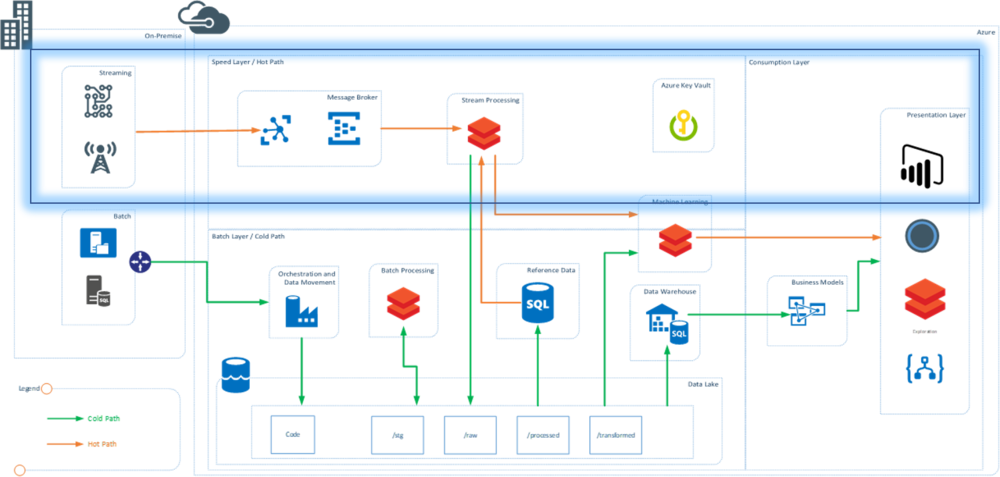
Technology stack:
- C# console application to mimic streaming events and send data to Event Hubs
- Azure Event Hubs as message broker and message queue
- Azure Databricks to read and process data from Azure Event Hubs in real time
- Databricks for real-time dashboards
Data
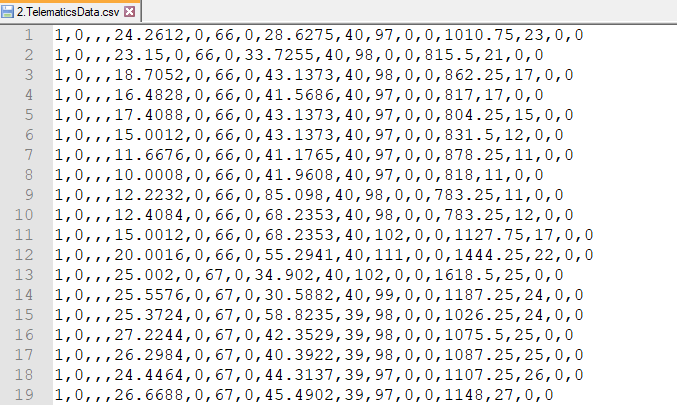
Data was sourced from a telematics dataset available at Kaggle. Headers were removed and some columns were dropped to create the final dataset.
Implementation
Section 1: Setting Up Resources
Resources were created in an Azure account:
- Event Hub Namespace: Used to create the Event Hub and get the Shared Access Policy Key (
EH_Key) - Event Hub: Create an instance in the namespace and note the Event Hub name (
EH_Name) - Databricks Workspace: Created to support the cluster and notebooks for real-time ingestion
Section 2: Building the C# Application as IoT Message Generator
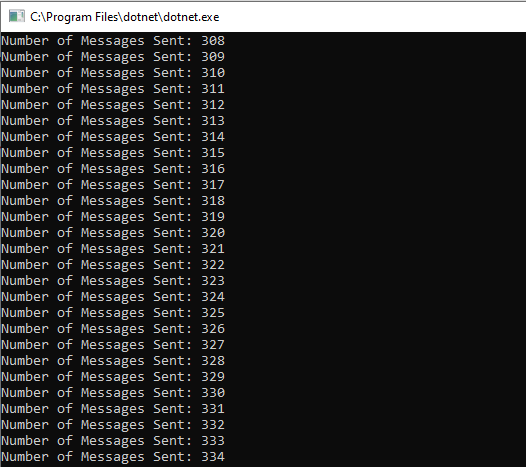
The C# application uses Azure Libraries to connect to Event Hubs and send messages in real time. Each row of the data file is converted to JSON and sent to Event Hubs.
private static EventHubClient eventHubClient;
private const string EventHubConnectionString = "Endpoint=sb://eventhhbnamespace.servicebus.windows.net/;SharedAccessKeyName=RootManageSharedAccessKey;SharedAccessKey=...";
private const string EventHubName = "eventhub";

private static async Task MainAsync(string[] args)
{
    var connectionStringBuilder = new EventHubsConnectionStringBuilder(EventHubConnectionString)
    {
        EntityPath = EventHubName
    };
    eventHubClient = EventHubClient.CreateFromConnectionString(connectionStringBuilder.ToString());
    Console.Write("Enter The number of Devices: ");
    string numOfDevices = Console.ReadLine();
    await SendMessagesToEventHub(System.Convert.ToInt32(numOfDevices));
    await eventHubClient.CloseAsync();
    Console.WriteLine("Press ENTER to exit.");
    Console.ReadLine();
}
Section 3: Verifying Event Hub Activity
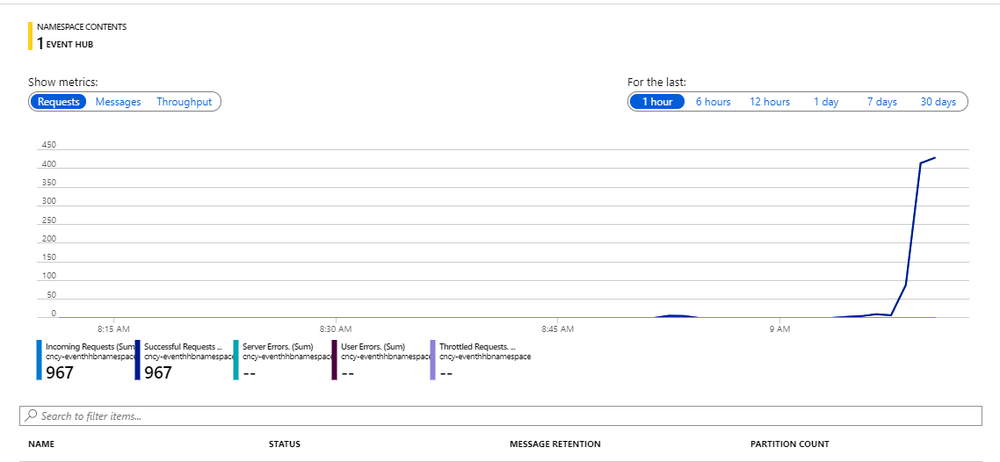
Once the streaming application starts, open the Azure portal and check the activity on the Event Hub Namespace. The messages and requests should be actively received — confirming that the real-time messaging has been set up successfully.
This was Part 1 of a 2-part series. We have successfully streamed data into Event Hubs. In Part 2, I explain how the data streaming into Event Hubs is consumed in Databricks for processing.